MACOS CLIENT
77Speed Mac Tutorial
From download to connection in 4 steps · about 5 minutes
1Download and choose the correct version
First confirm your Mac chip: click the Apple menu () → About This Mac → check Chip/Processor: if it shows Apple M... choose arm64; if Intel... choose x64.
Based on your chip, download one of the four builds below:
77Speed-3.0.6-mac-arm64.dmg Recommended
Apple Silicon (M series) · standard installer · drag to install
⬇ Download77Speed-3.0.6-mac-arm64.zip
Apple Silicon (M series) · zip · unzip and run, no install needed
⬇ DownloadDownload failed or too slow? Go to yun.qiqi.cat cloud drive and download manually (MacOS_client folder)
2Installation
① Drag to install
Open the downloaded
.dmg, then drag the app icon into the Applications folder.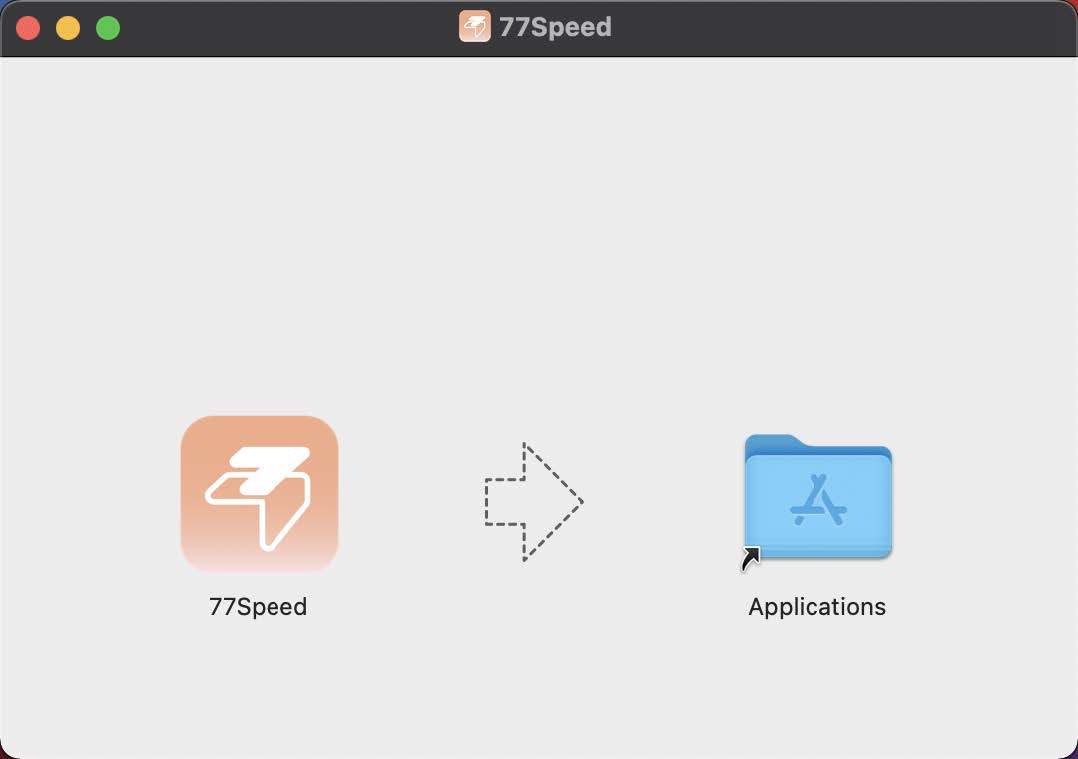
▲ Drag-to-install preview
② First-launch confirmation
On first launch, if a security prompt appears, click Open
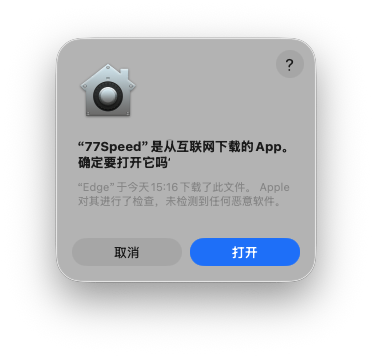
▲ Security prompt
③ Sign in
Open the app and click Sign in (same username/password as the website).
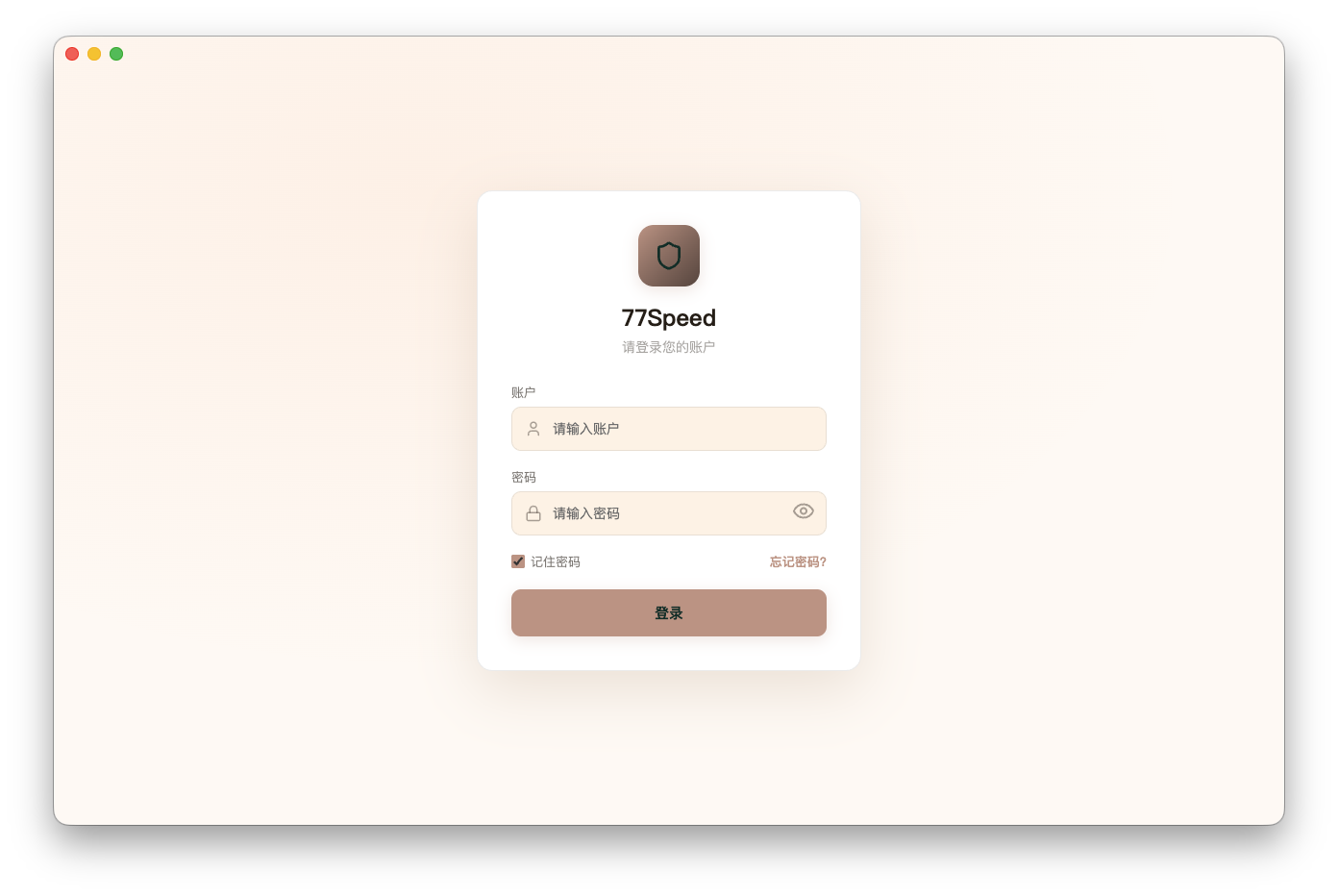
▲ Login screen
3Connection modes
PAC mode Daily recommended
Uses the proxy only for overseas sites; domestic sites stay direct. Recommended for daily use.
Global mode
All app and website traffic goes through the proxy. Use when needed.
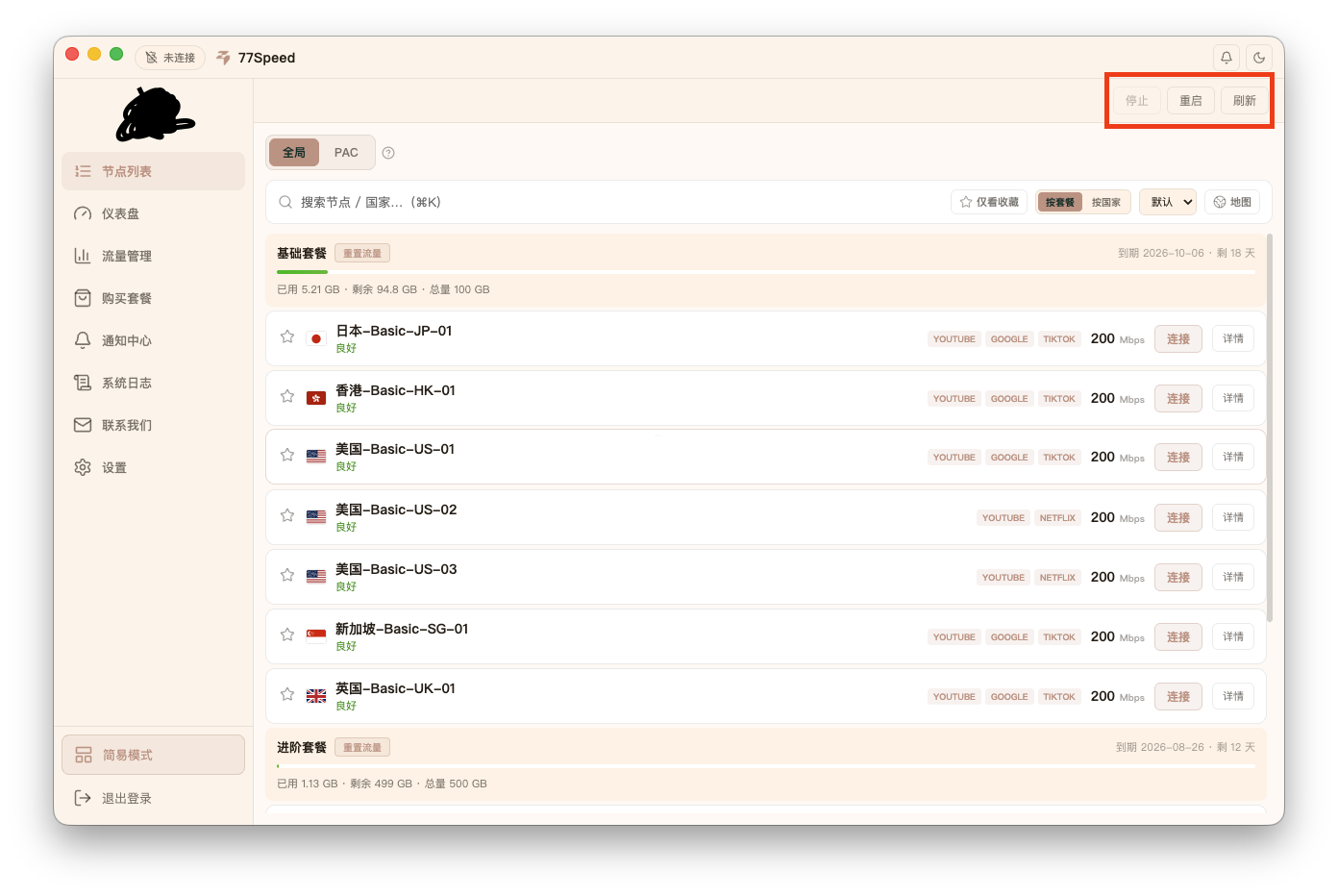
Choose a mode. After a successful connection you will see the screen below and can use the network normally:
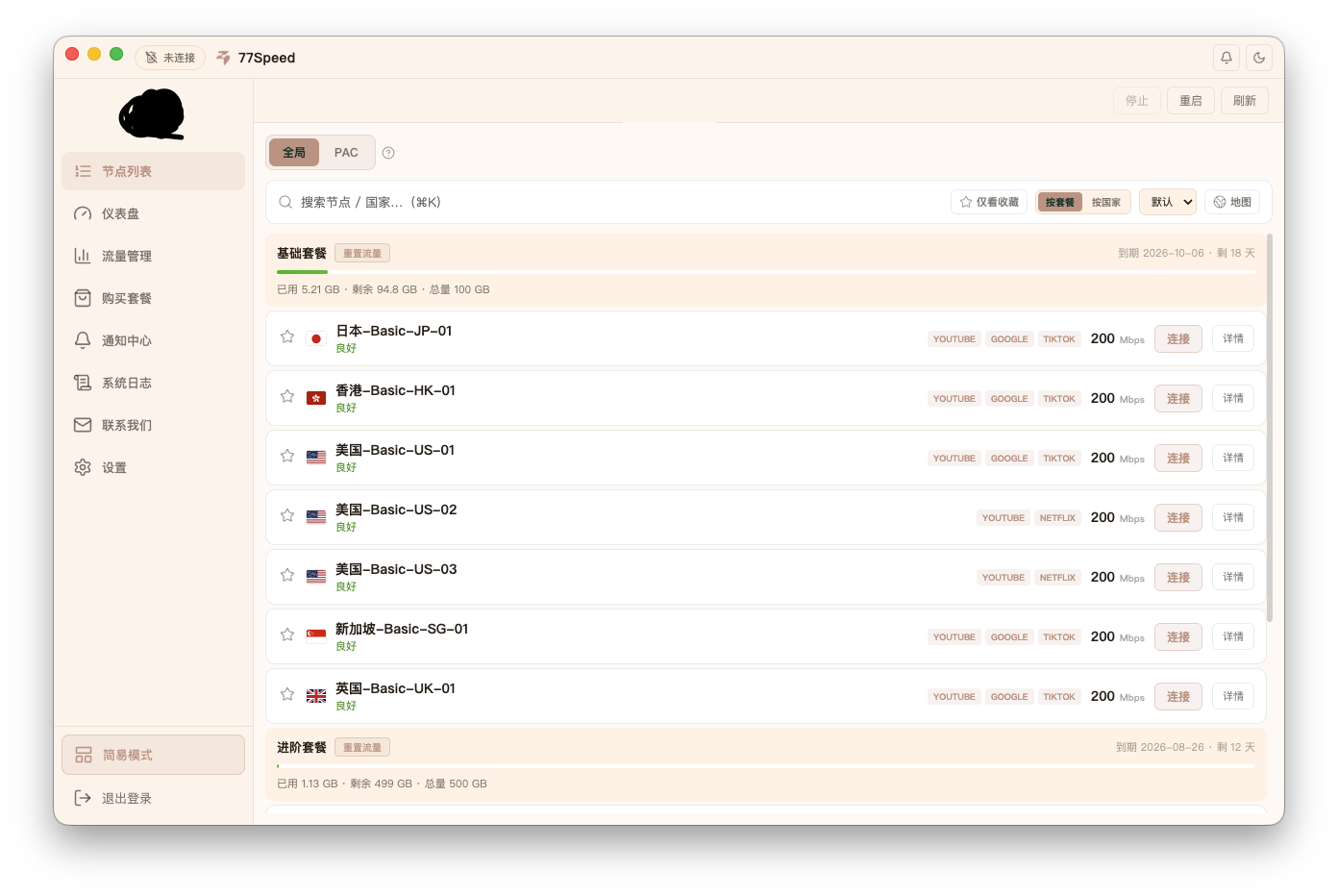
▲ Connection mode screen
4⌨️ Shortcuts
- Key 1: Refresh user data (plan quota, etc.)
- Key 2: After connected, refresh the connection (auto reconnect)
- Key 3: Disconnect the current proxy
Tips
✔ M-series chips use arm64; Intel uses x64 — do not download the wrong build
✔ Use the same account as the website; if login fails, check account status first
✔ PAC mode is recommended for daily use; domestic sites are smoother via direct connect
✔ Download failed? Go to yun.qiqi.cat (MacOS_client folder) and download manually