WINDOWS CLIENT
77Speed Windows Tutorial
From download to connection in 3 steps · about 3 minutes
1Download the app
Click the button below to download the latest installer:
77Speed-3.0.6-setup.exe installer
Official direct link · double-click to install after download
⬇ Download installer
Download failed or too slow? Go to yun.qiqi.cat cloud drive and download manually (Windows_client folder)
2Installation
① Open the installer
Locate the downloaded installer and double-click it. If you see a SmartScreen prompt, click More info.
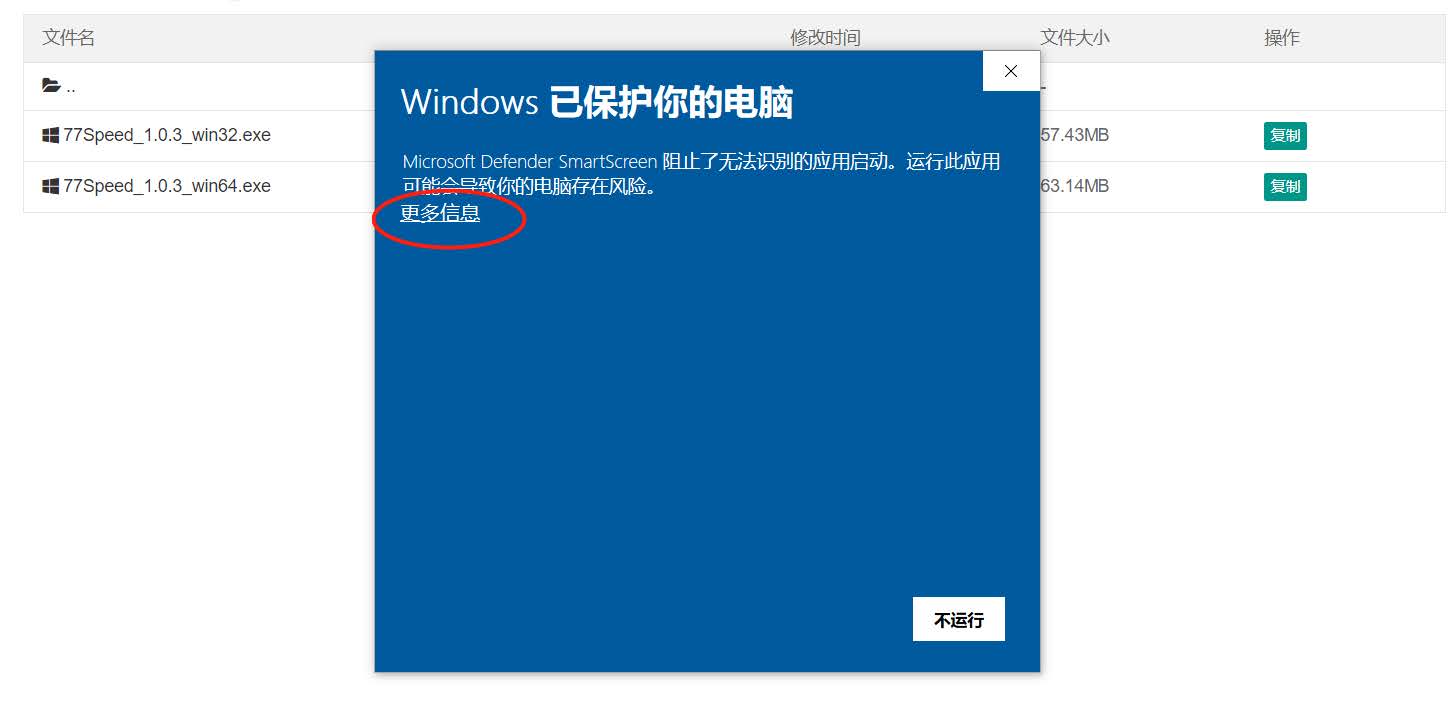
▲ SmartScreen prompt
② Run anyway
Click Run anyway, then in the UAC popup choose Yes.
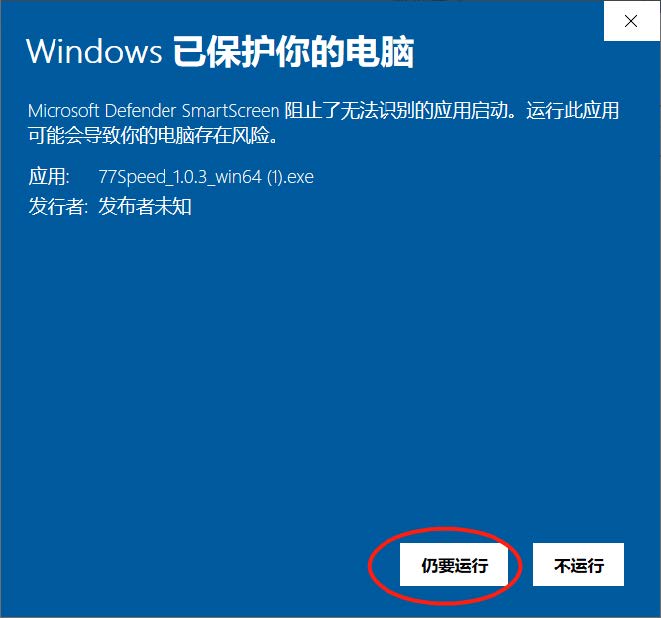
▲ Confirm running the installer
③ Finish installation
Click Install, then click Finish. A 77Speed icon will appear on the desktop. If those screens do not appear, install with the default path.
3How to use
① Sign in
Open the app and enter your account credentials on the main screen (same username and password as the website).
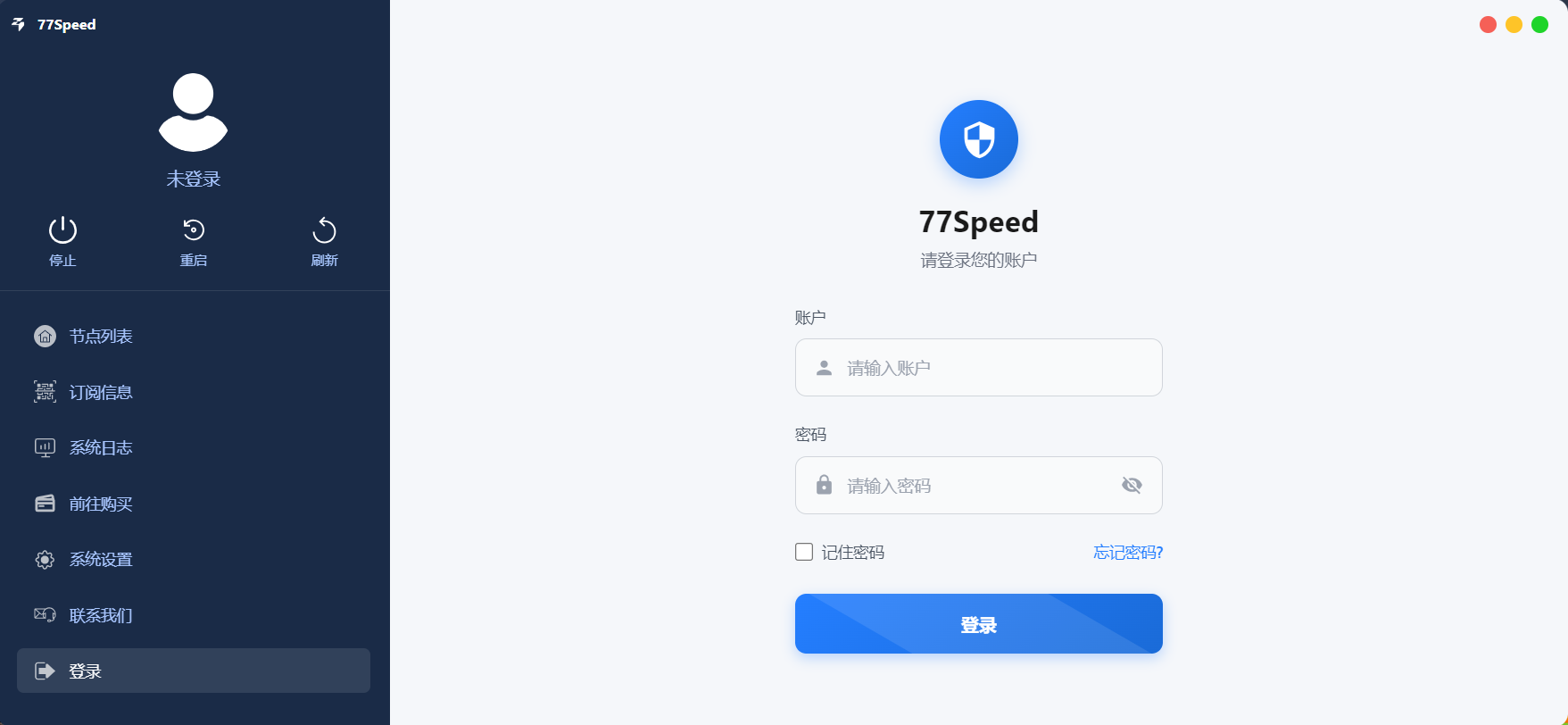
▲ Login screen
② Choose connection mode
After signing in you reach the main screen. Choose PAC (proxy only for overseas sites) or Global (all app and website traffic through the proxy) as needed.
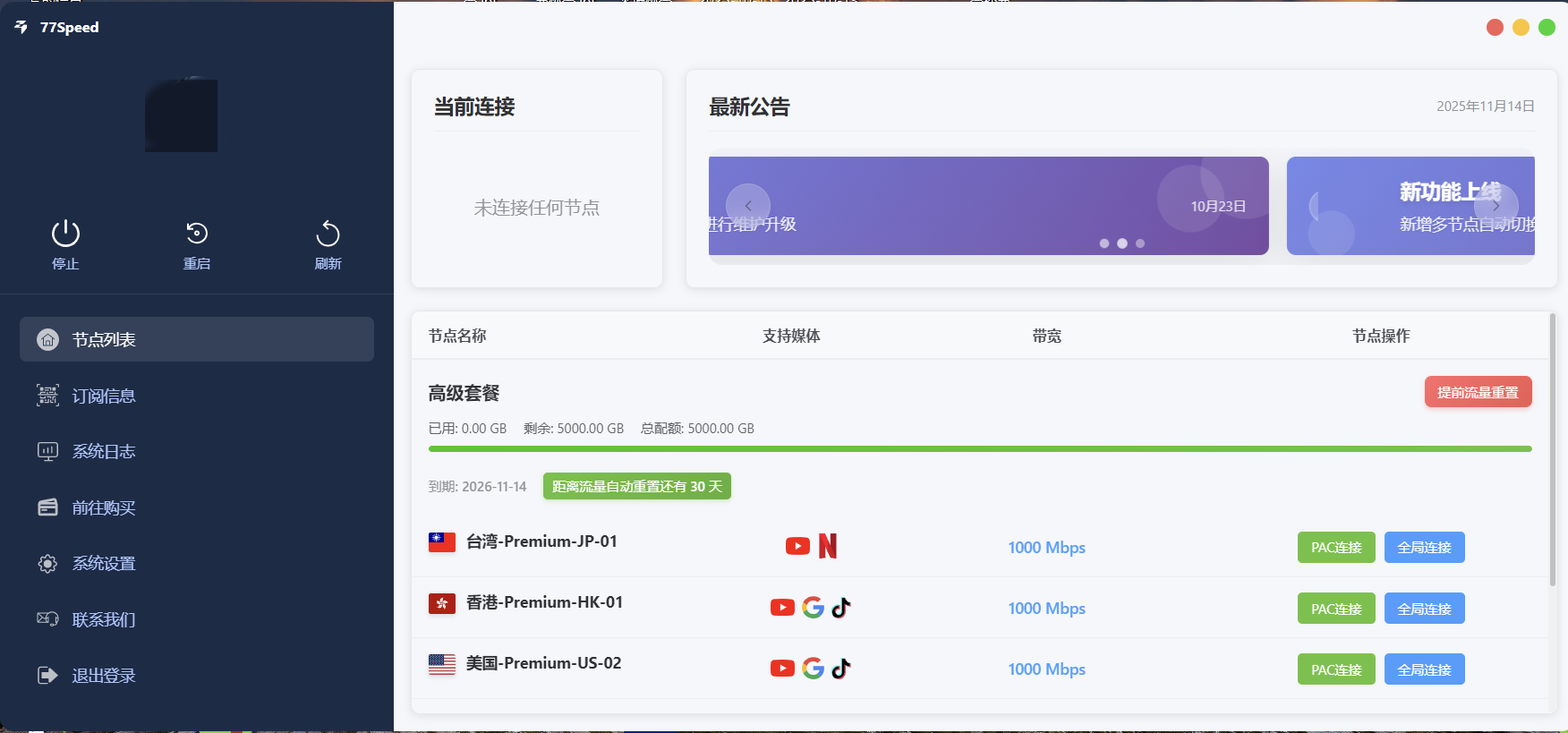
▲ PAC / Global mode
③ Subscription info
You can get subscription URLs for other clients under Subscription Info.
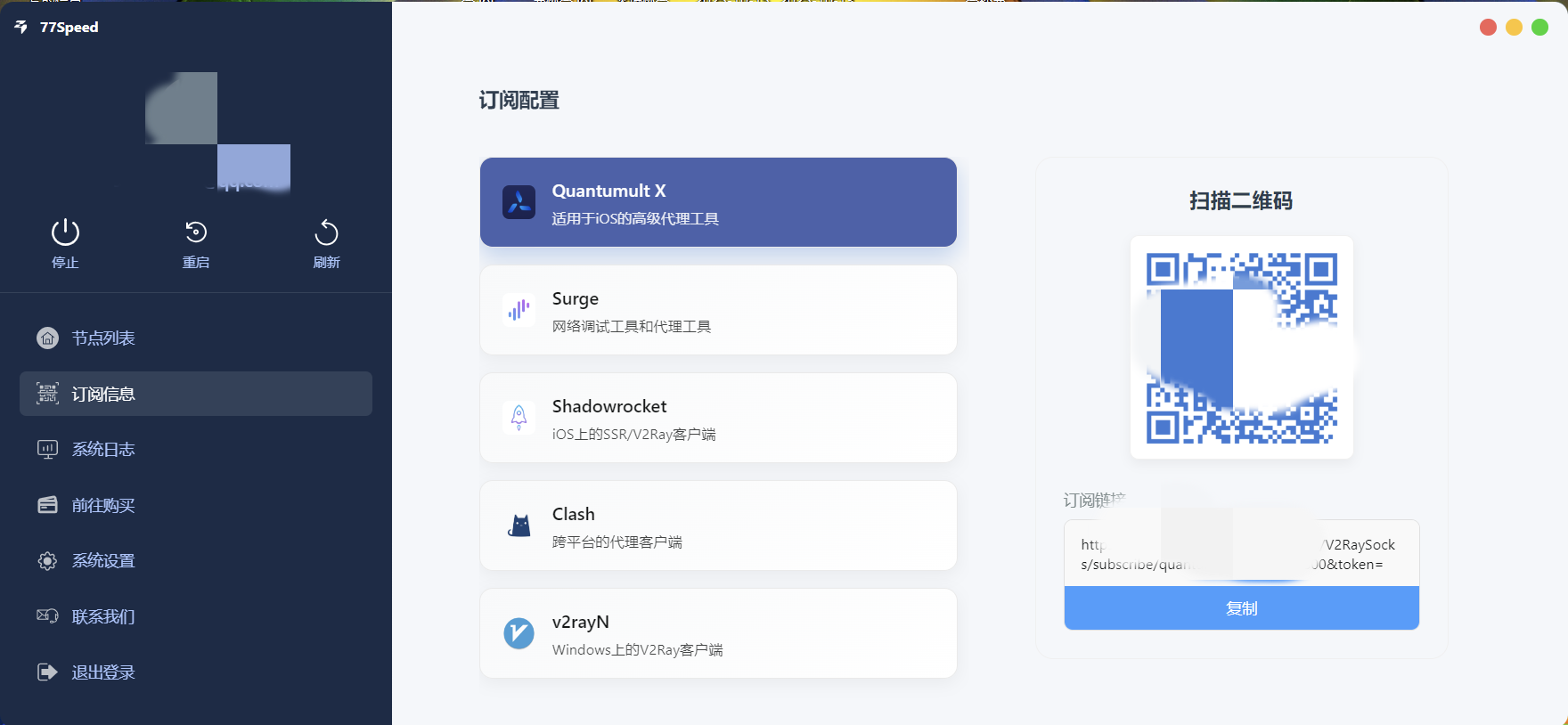
▲ Subscription info
Tips
✔ If SmartScreen / security prompts appear, choose “More info” → “Run anyway”
✔ Use the same account as the website; if login fails, check account status first
✔ Direct download failed? Download manually from yun.qiqi.cat
✔ Still stuck? Open a ticket or contact live support