DESKTOP CLIENT
Desktop Client Node Update Tutorial
Open the app → tap Refresh · about 30 seconds
1Refresh nodes
Open the desktop client, then click the Refresh button on the main screen to update the latest node list.
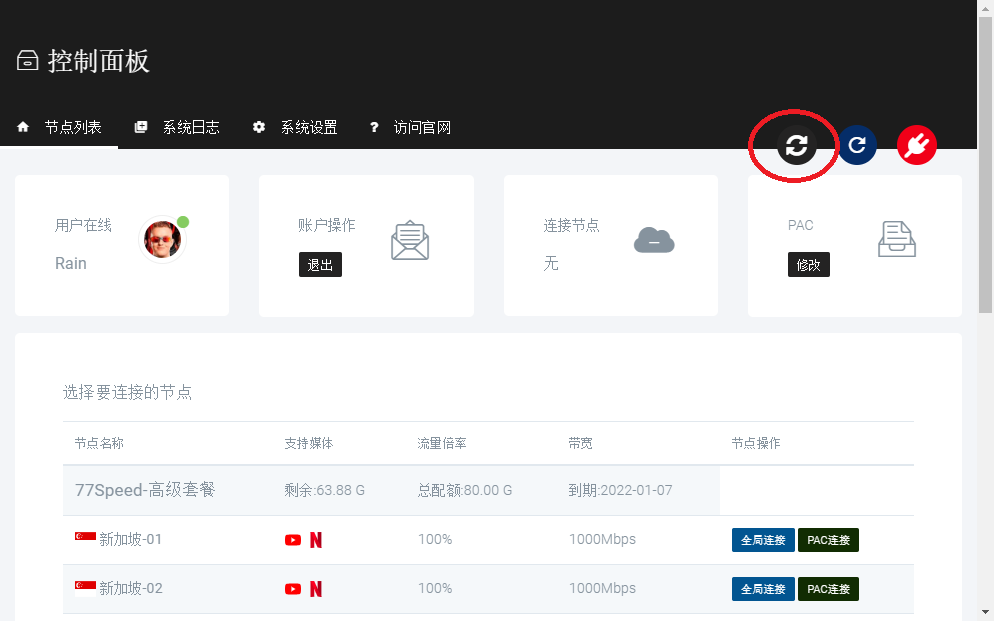
▲ Click Refresh on the main screen
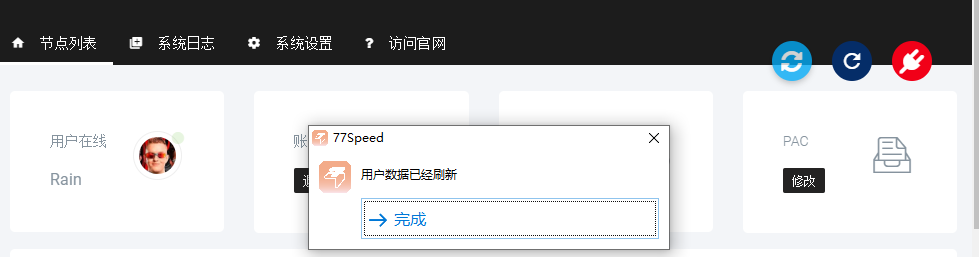
▲ Nodes updated
Tips
✔ Keep a stable network connection before refreshing
✔ If no nodes appear after refresh, confirm your plan is active
✔ This works for both Windows and Mac official clients
✔ Still stuck? Open a ticket or contact live support