ANDROID NODE UPDATE
Android Client Node Update Tutorial
Copy Clash URL → import profile → start VPN · about 3 minutes
1Copy the Clash subscription URL
① Sign in to the website
Open https://www.qiqi.cat, sign in, and open your client area.
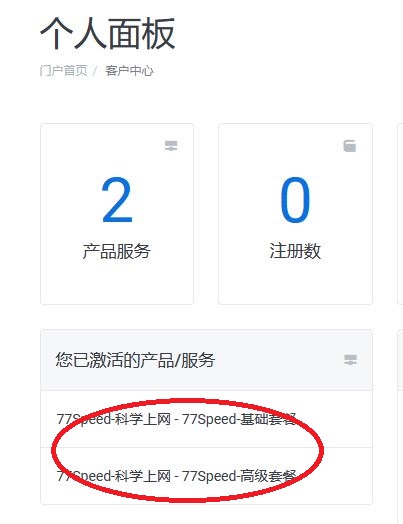
▲ Website client area
② Reset and copy the Clash URL
On the plan page, find Subscription Info, tap Reset first, then copy the Clash URL under the platform URLs.
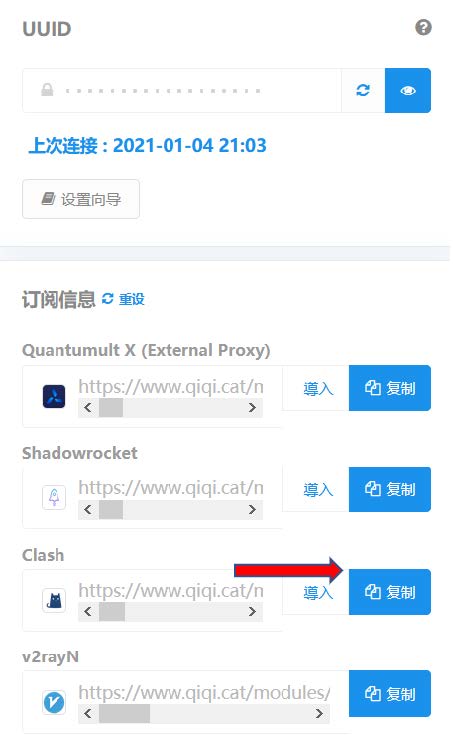
▲ Copy Clash subscription URL
2Import a new profile in Clash
① Open Profiles
Open Clash, go to the main screen, and tap Profiles.
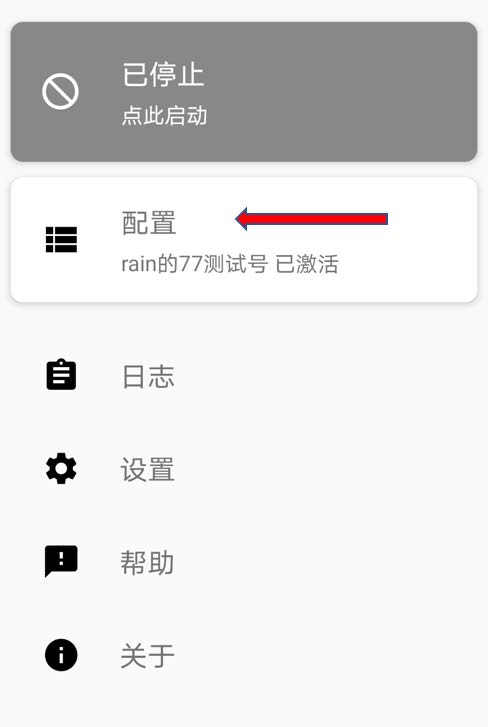
▲ Tap Profiles
② New profile → Import from URL
Tap New Profile, then choose URL (Import from URL).
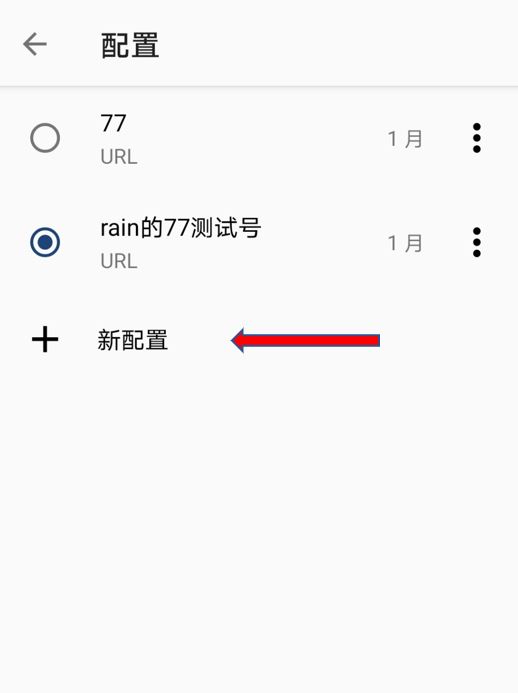
▲ New Profile
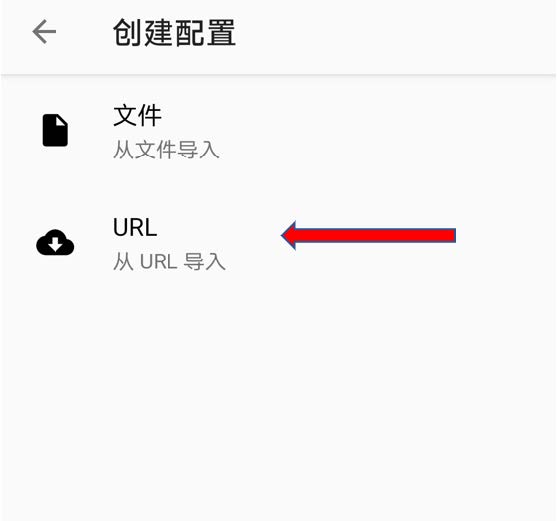
▲ Choose URL (Import from URL)
③ Paste the URL and confirm
Tap Profile URL, paste the URL copied from the product panel, then confirm.
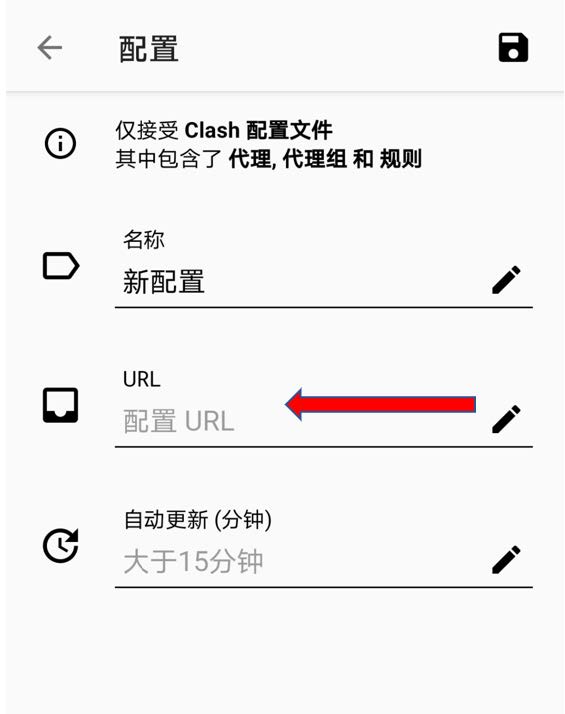
▲ Profile URL
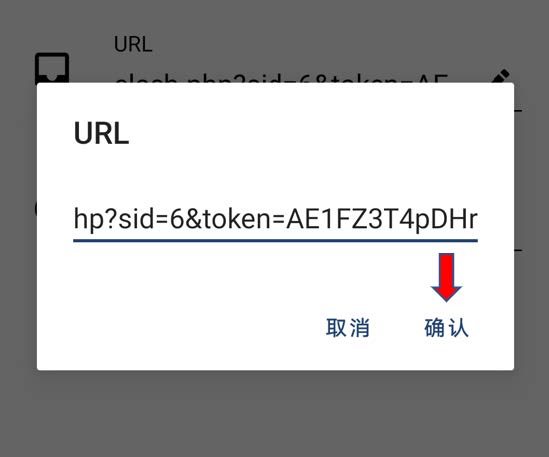
▲ Paste and confirm
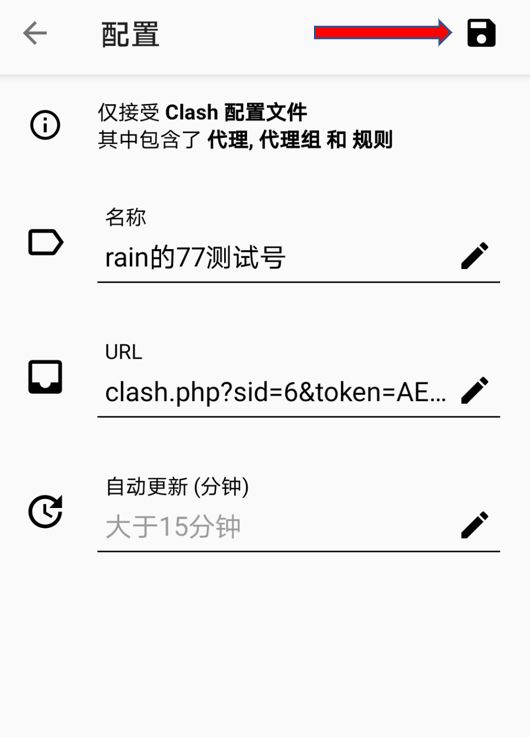
▲ Profile importing
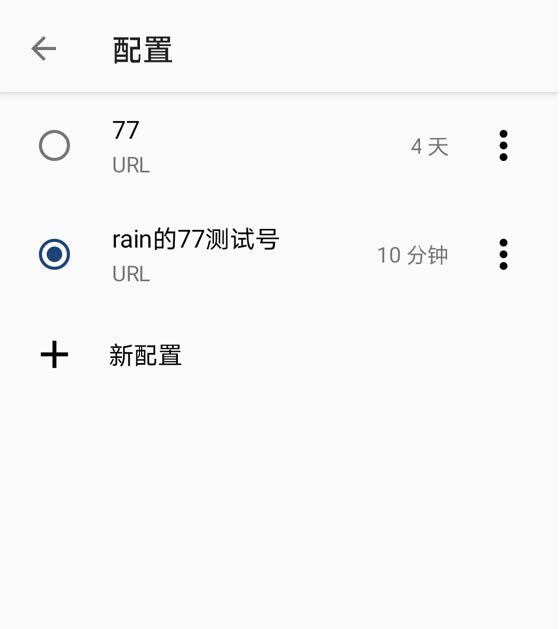
▲ Profile imported
3Start the VPN connection
Return to the main screen and tap Start to complete the VPN connection.
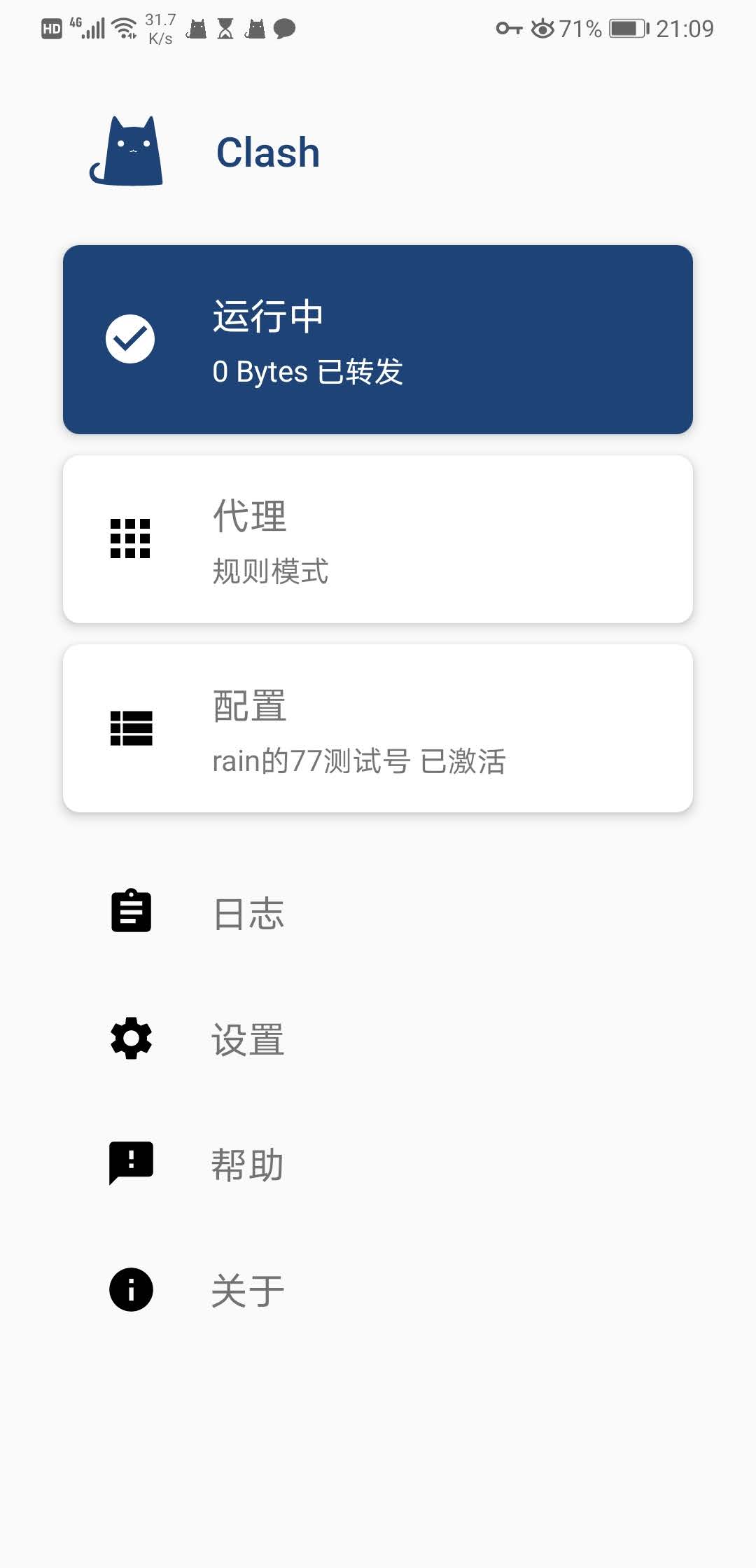
▲ Start VPN on the main screen
Tips
✔ Tap Reset before copying so you get the latest Clash subscription URL
✔ Choose URL (Import from URL), not a local file
✔ If you use the official 77Speed App while logged in, you can also refresh nodes inside the app
✔ Still stuck? Open a ticket or contact live support